Help / Style mode: how the grid looks
Style mode: how the grid looks
Shade, circle and mark squares, and set the grid's appearance for the editor, print, exports and the player.
Squares
In Style mode, click squares to select them. Shift-click selects a rectangle and Ctrl-click adds to the selection. Then shade them, circle them, or mark the letters in them as given, which solvers see already in place and cannot change. A square can show its shade or circle in the editor, in print, in the player, or in all of them. Select all squares chooses every light, and Remove all properties from the selection undoes it.
Appearance
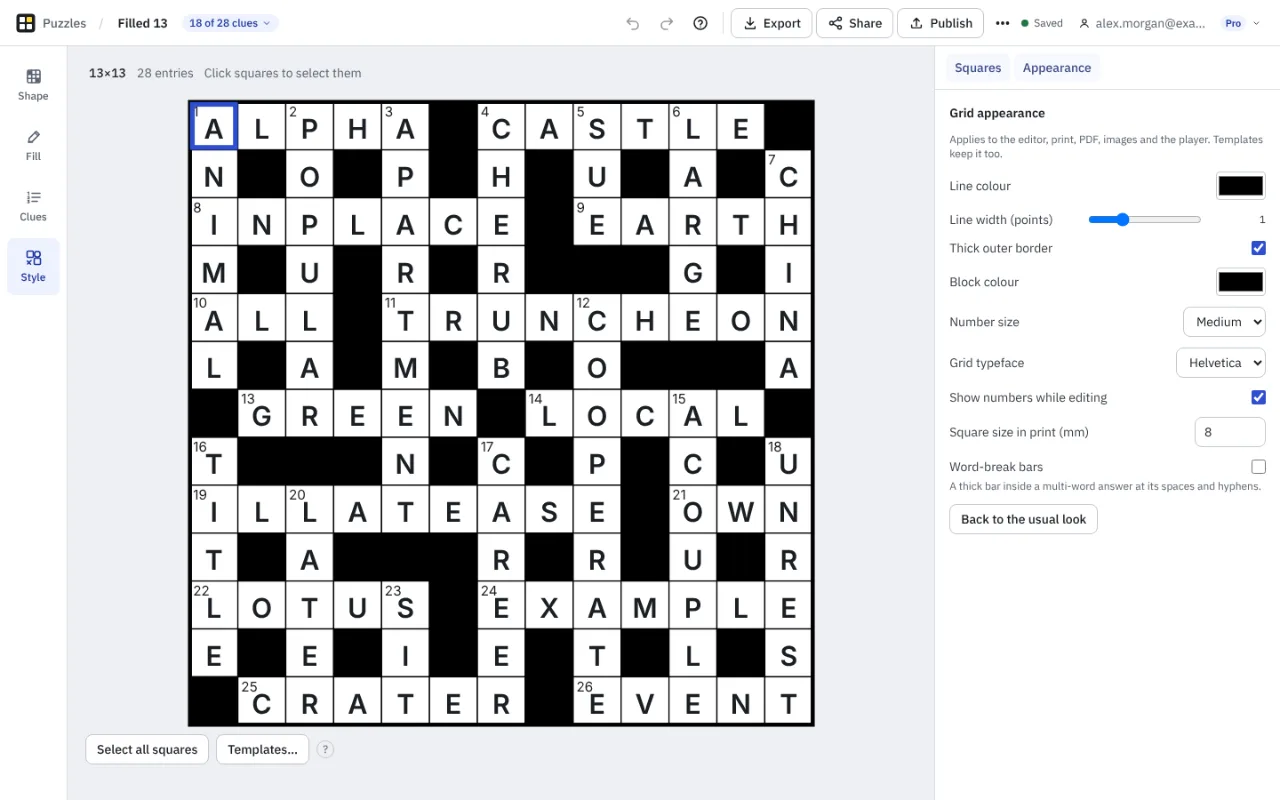
The Appearance tab sets the grid for everything Crossmith produces: the editor, print, PDF, images, exports and the player.
- Line colour and line width in points, and a thick outer border.
- Block colour. Blocks stay black in print and exports unless you change this.
- Number size, the typeface of the grid, and whether to show numbers while editing.
- Square size in print, in millimetres.
- Word-break bars, a thick bar inside a multi-word answer at its spaces and hyphens.
- Back to the usual look restores the defaults.
Templates
A puzzle template keeps your size, style and settings, including the appearance, for the next puzzle. Templates... in Style mode opens them, and the New puzzle window offers them too.
Something missing or wrong? Write to hello@crossmith.com.